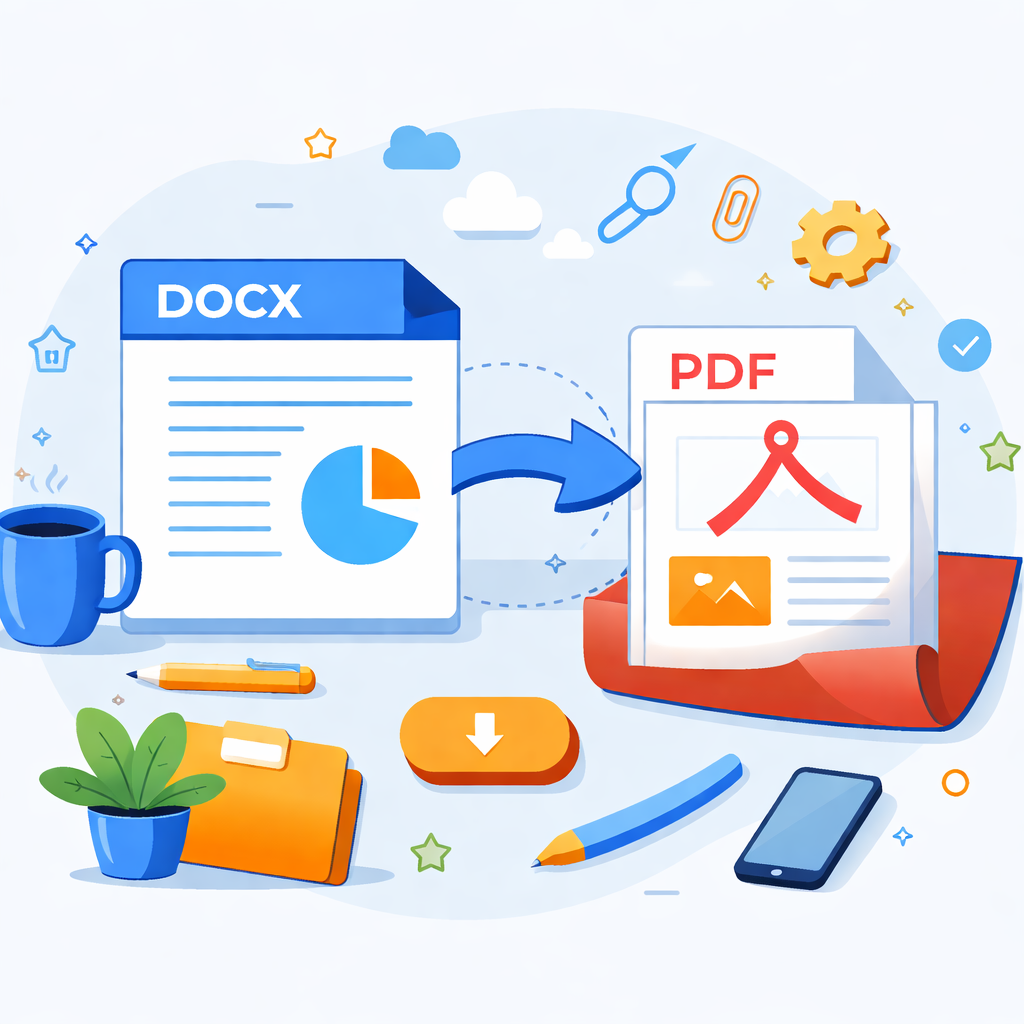
Click or drag a DOCX file here
Only .docx is supported. For .doc/.wps, please save/export to .docx or PDF first.
Preview
Choose a .docx file and render the preview.
How to Use
How to Use
- Click 'Choose file' or drag and drop a .docx file into the dashed area.
- Once loaded, the document preview will render on the right (options for page breaks/headers available).
- Verify the preview, then click the 'Print / Save as PDF' button.
- In the system print dialog, select 'Save as PDF' as the destination to export.
Tips
- This tool runs entirely in your browser using docx-preview; files are never uploaded.
- Supports standard .docx format (Word 2007+). Legacy .doc files must be converted first.
- Rendering aims to match Word closely, but complex layouts may have minor differences.
- If the print button doesn't work, check if your browser blocked the popup.