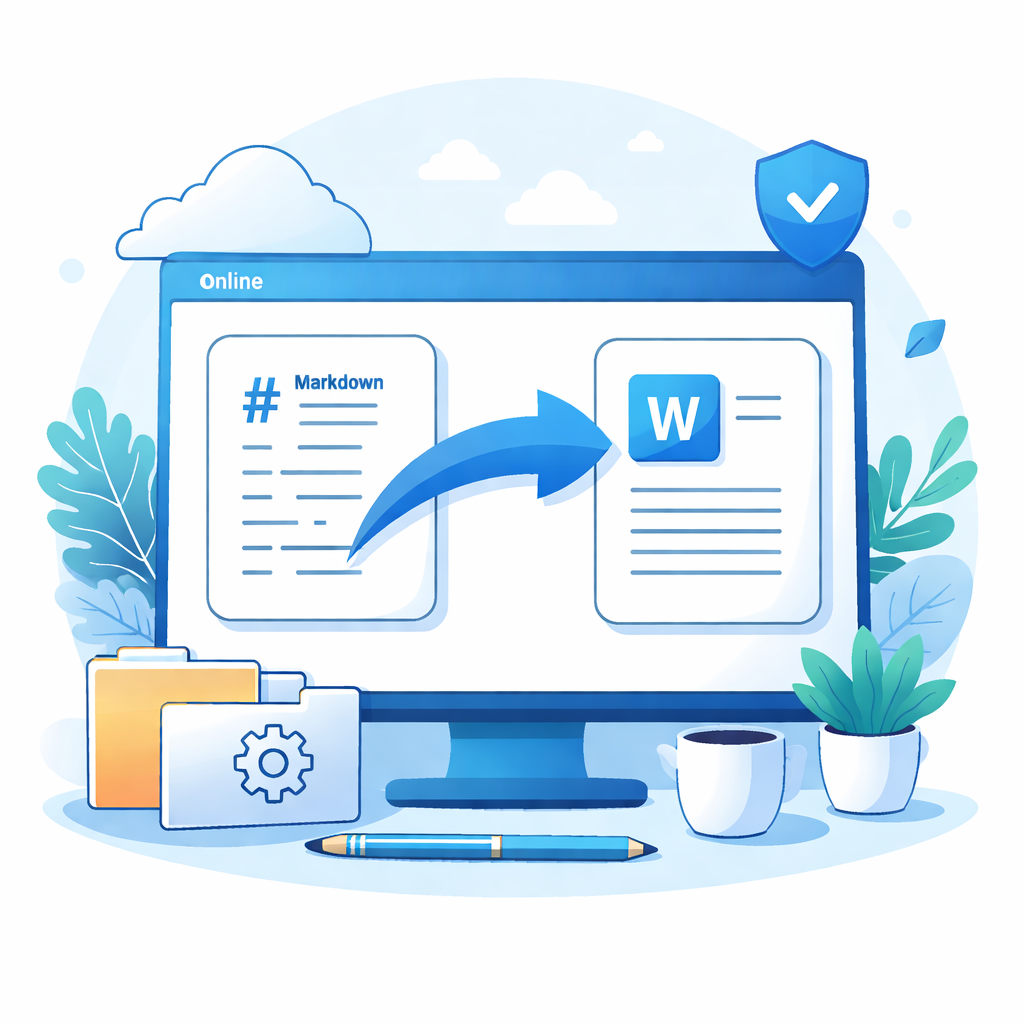
The rich text format generates styled HTML snippets with headings, lists, code blocks, tables, quotes and links that Word can render as formatted content. The plain text format keeps the original Markdown syntax, making it easy to adjust styles later in Word.
Rich text: produces structured HTML that is close to the final layout, ideal for quickly creating a first draft in Word.
The right side updates in real time so you can compare the converted output.
How to use: copy the content on the right and paste it into your Word document.
- Prepare your Markdown input or upload a .md file and check the output.
- Click the “Copy to clipboard” button.
- Switch to your Word document and paste at the desired location.
- With rich text output, Word will preserve most headings, lists, code blocks and other styles.
Supported conversion features
- ✅ Headings (H1–H4 with font size and emphasis)
- ✅ Text styles (bold, italic, underline, strikethrough)
- ✅ Code blocks (monospace font with background)
- ✅ Inline code (highlighted inline snippets)
- ✅ Lists (ordered and unordered)
- ✅ Tables (borders, header row and cells)
- ✅ Blockquotes (left border and soft background)
- ✅ Links (clickable blue links)
- ✅ Images (keeps image URLs for later insertion)
- ✅ Horizontal rules (standard separators)
- ✅ Paragraph spacing (improved readability)
- ✅ Heading syntax (keep # / ## / ### / ####)
- ✅ Text styles (keep **bold** / *italic* markers)
- ✅ Code blocks (keep ``` fences)
- ✅ Inline code (keep `code` markers)
- ✅ Lists (keep * and 1. markers)
- ✅ Tables (keep pipe-separated rows)
- ✅ Quotes (keep > prefixes)
- ✅ Links (keep [text](url) form)
- ✅ Images (keep  form)
- ✅ Separators (keep --- syntax)
How to Use
Tips & FAQ
Format Selection "Rich text" generates styled HTML that Word can render with headings, lists, and tables. "Plain text" preserves Markdown syntax for uniform styling in Word.
Pasting Tip If formatting is broken, right-click and select "Keep Source Formatting" or "Merge Formatting" in Word.
Privacy & Security Conversion happens entirely in your browser. Your content is never uploaded to any server.